

HiddenLayer Azure Sentinel Integration Guide
Overview
This guide provides step-by-step instructions for integrating HiddenLayer with Microsoft Sentinel. Runtime detections will be sent from the HiddenLayer Console to an Azure Log Analytics Workspace for ingestion by Sentinel.
Architecture
Prerequisites
- Azure subscription with the following permissions:
- Azure Entra ID: Create and manage app registrations, create client secrets
- Azure Monitor: Create and manage Data Collection Endpoints (DCE)
- Azure Monitor: Create and manage Data Collection Rules (DCR)
- Log Analytics Workspace: Create and manage custom tables
- Access Control (IAM): Grant role assignments on Data Collection Rules
- Log Analytics Workspace
- Azure Sentinel
- HiddenLayer Console admin access
Setup Steps
Step 1: Register Application in Azure Entra ID
-
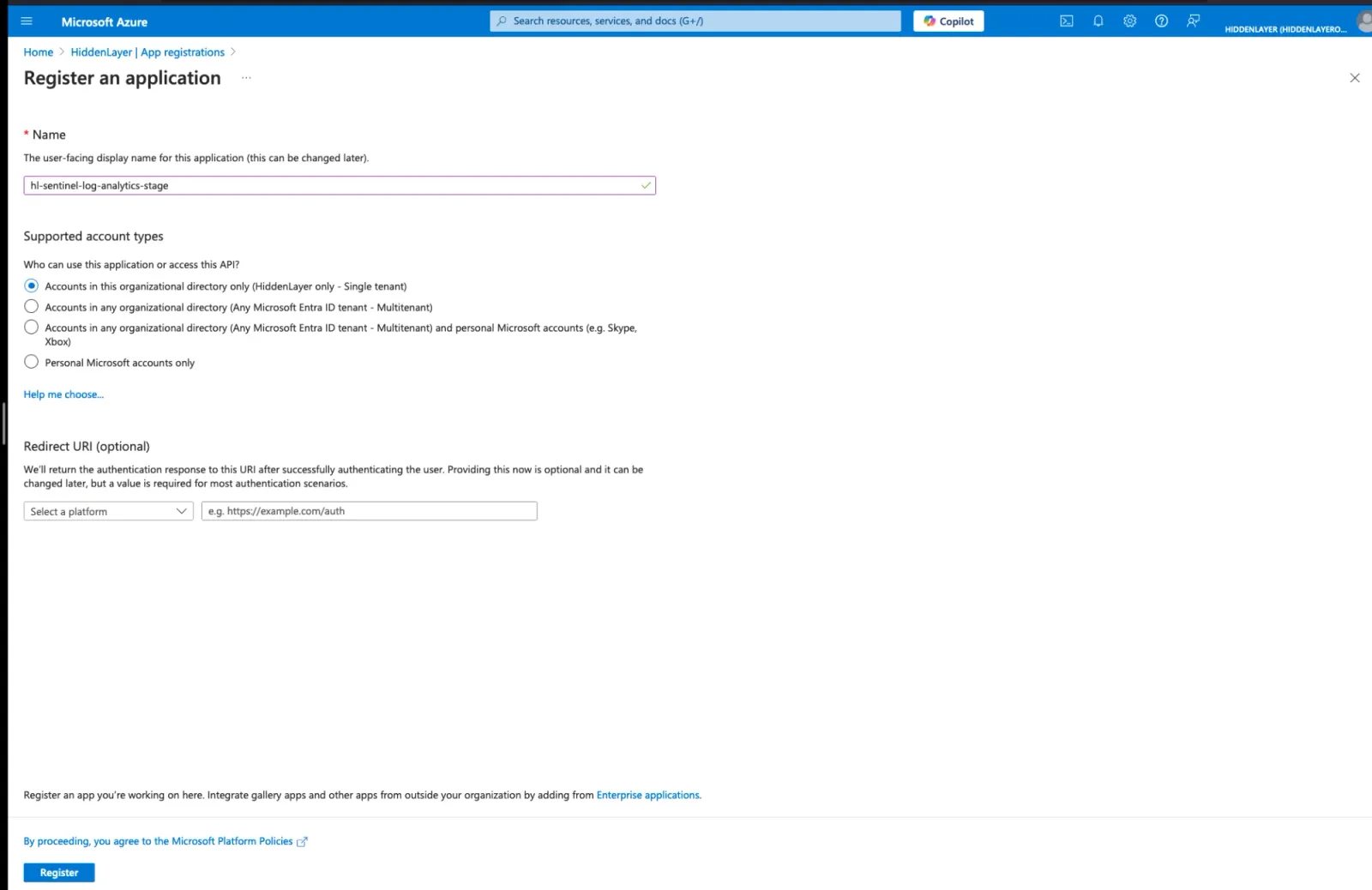
Navigate to Azure Portal → Microsoft Entra ID → App registrations
-
Click New registration
-
Enter a name for the application (e.g.,
hl-sentinel-log-analytics-stage) -
Select Accounts in this organizational directory only (Single tenant)
-
Click Register
-
Save the following values:
- Application (client) ID - You’ll need this later
- Directory (tenant) ID - You’ll need this later
Step 2: Create Client Secret
-
In your app registration, navigate to Certificates & secrets
-
Click New client secret
-
Enter a description (e.g.,
IntegrationToken) and set expiration (recommended: 180 days or 6 months)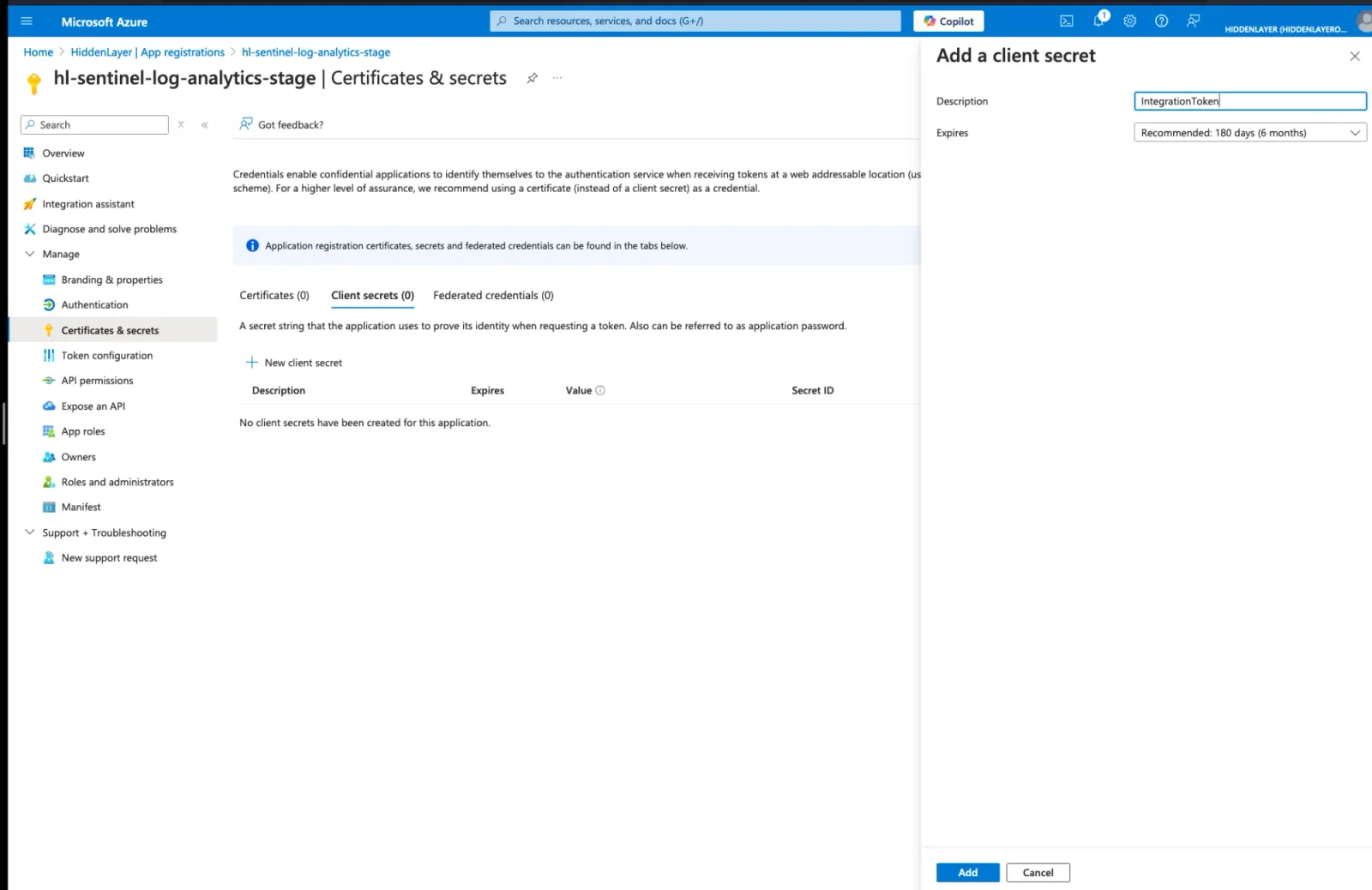
-
Click Add
-
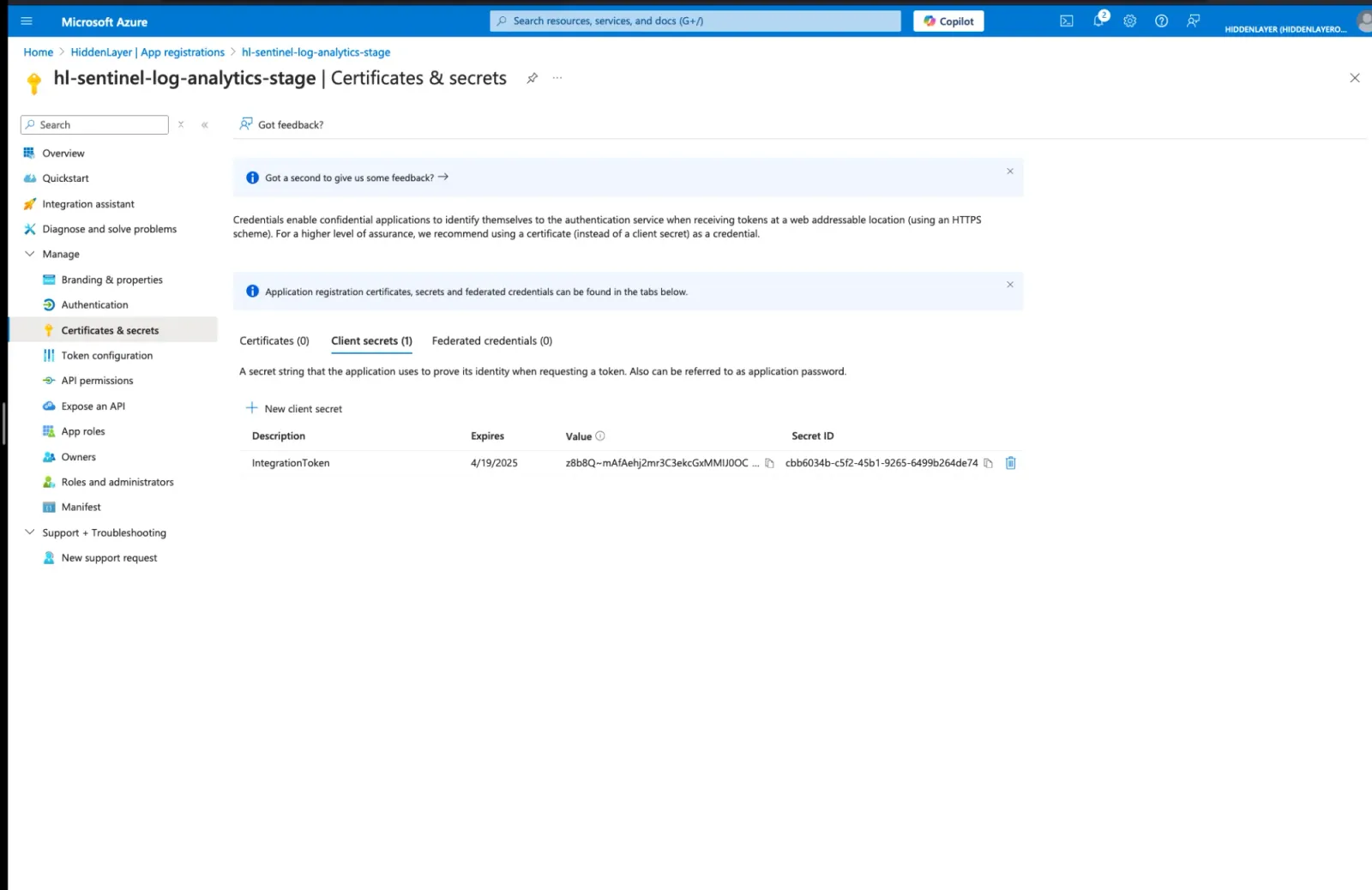
IMMEDIATELY COPY THE SECRET VALUE - You cannot view it again after leaving this page
-
Save this value securely - You’ll need it for HiddenLayer configuration
This value will not be available once you leave this page. If you leave the page without copying the secret value, you must create a new secret.
Step 3: Create Data Collection Endpoint
-
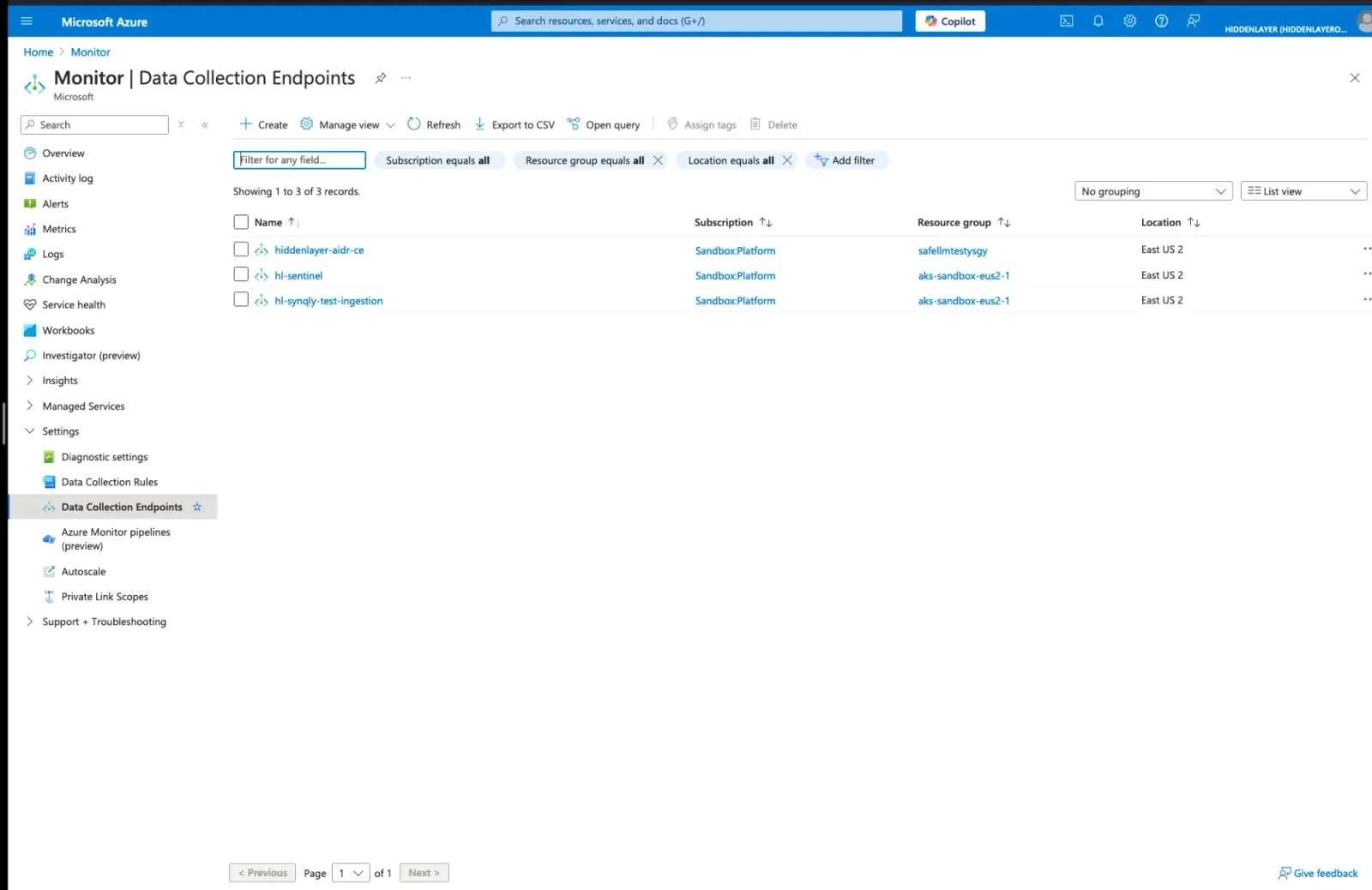
Navigate to Azure Portal → Monitor → Data Collection Endpoints
-
Click Create
-
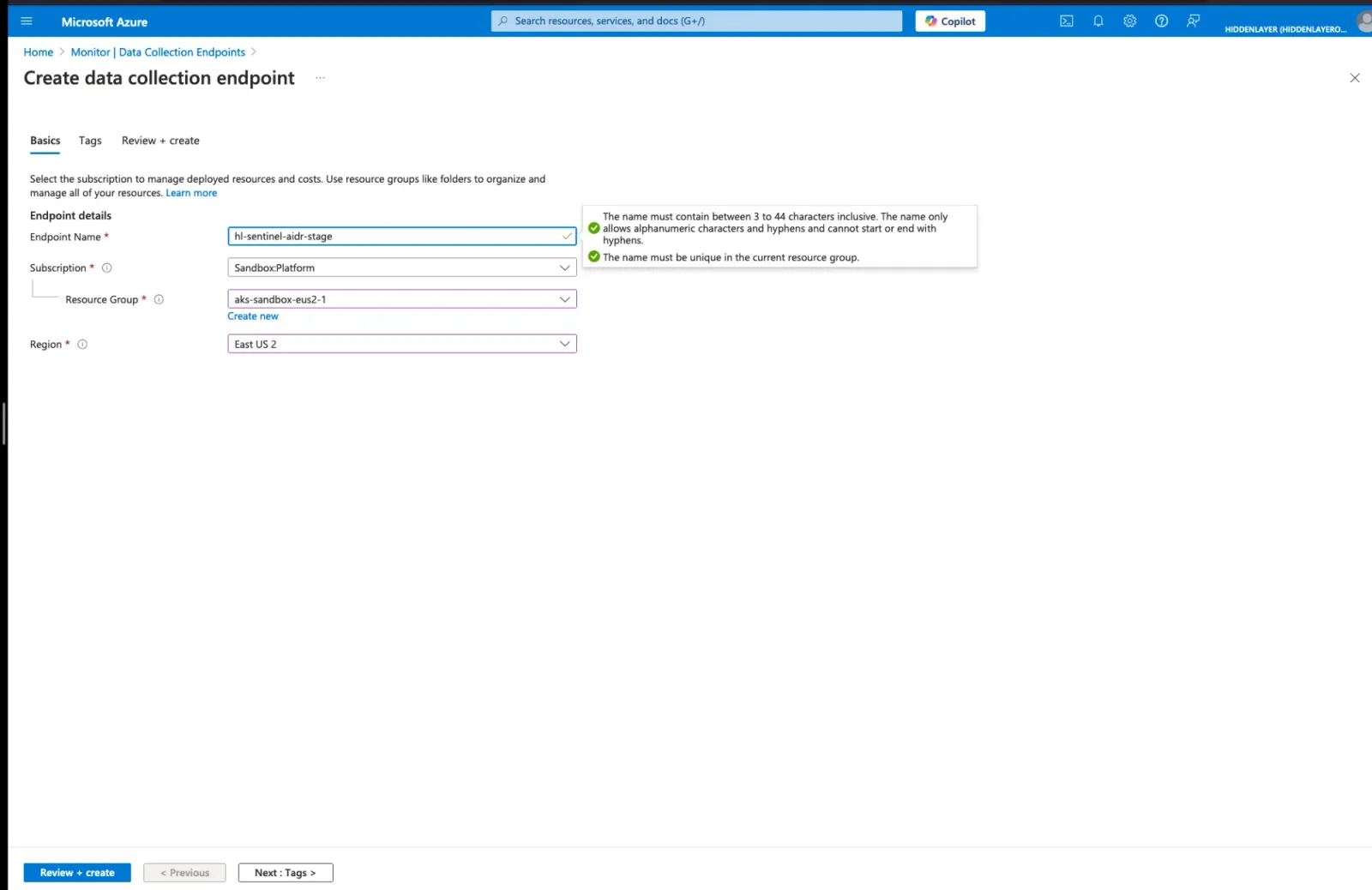
Configure the endpoint:
- Name:
hl-sentinel-aidr-<environment>(e.g.,hl-sentinel-aidr-stage) - Subscription: Select your subscription
- Resource Group: Select or create a resource group
- Region: Choose the region closest to your HiddenLayer deployment
- Name:
-
Click Review + create → Create
-
Once created, select the endpoint and click JSON View
-
Copy the
dataCollectionEndpointId- It looks like: -
Copy the
logsIngestionURL - It looks like:
Step 4: Create Custom Log Analytics Table
-
Navigate to Azure Portal → Log Analytics workspaces
-
Select your workspace (where Sentinel is enabled)
-
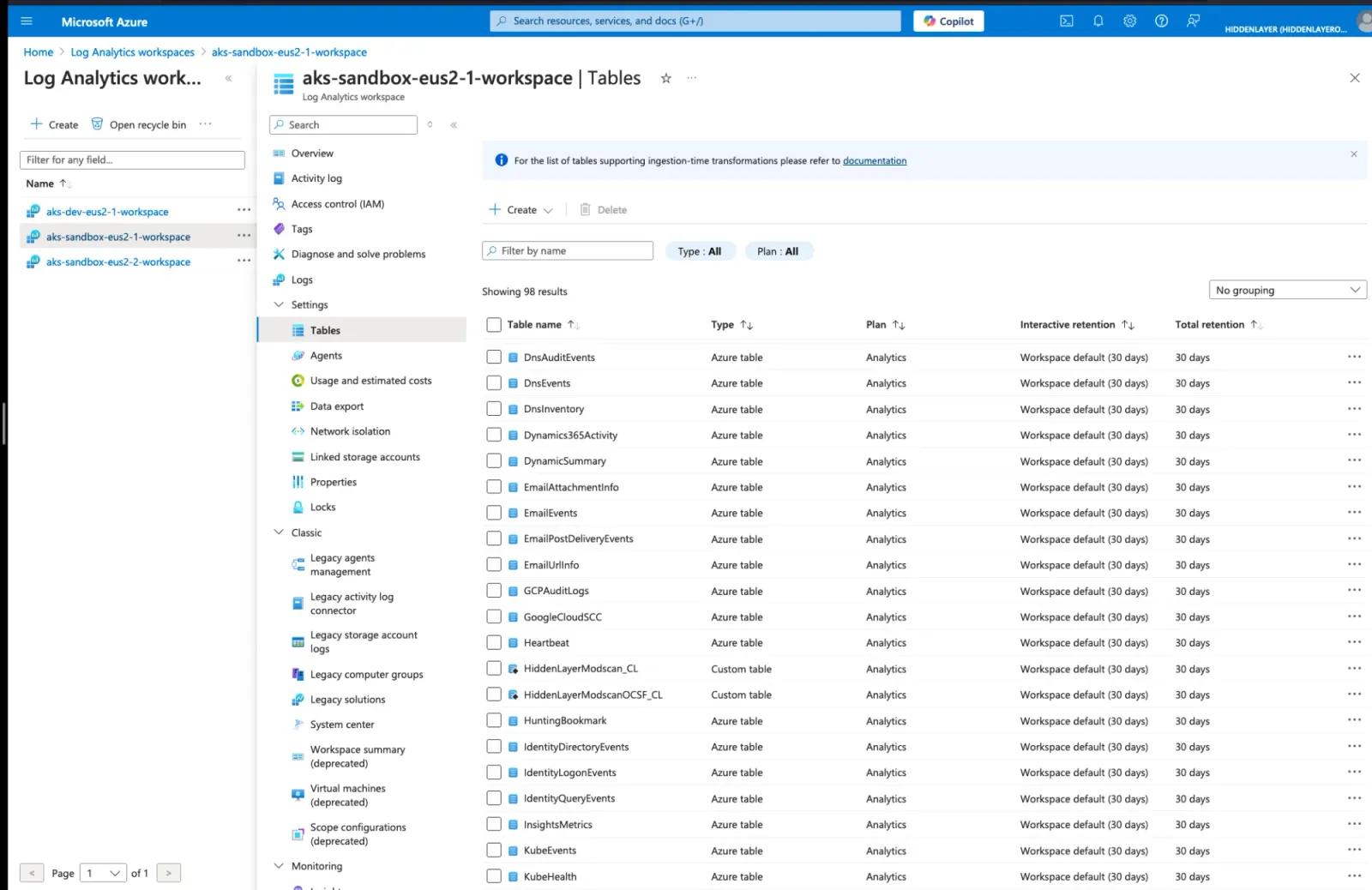
Navigate to Settings → Tables
-
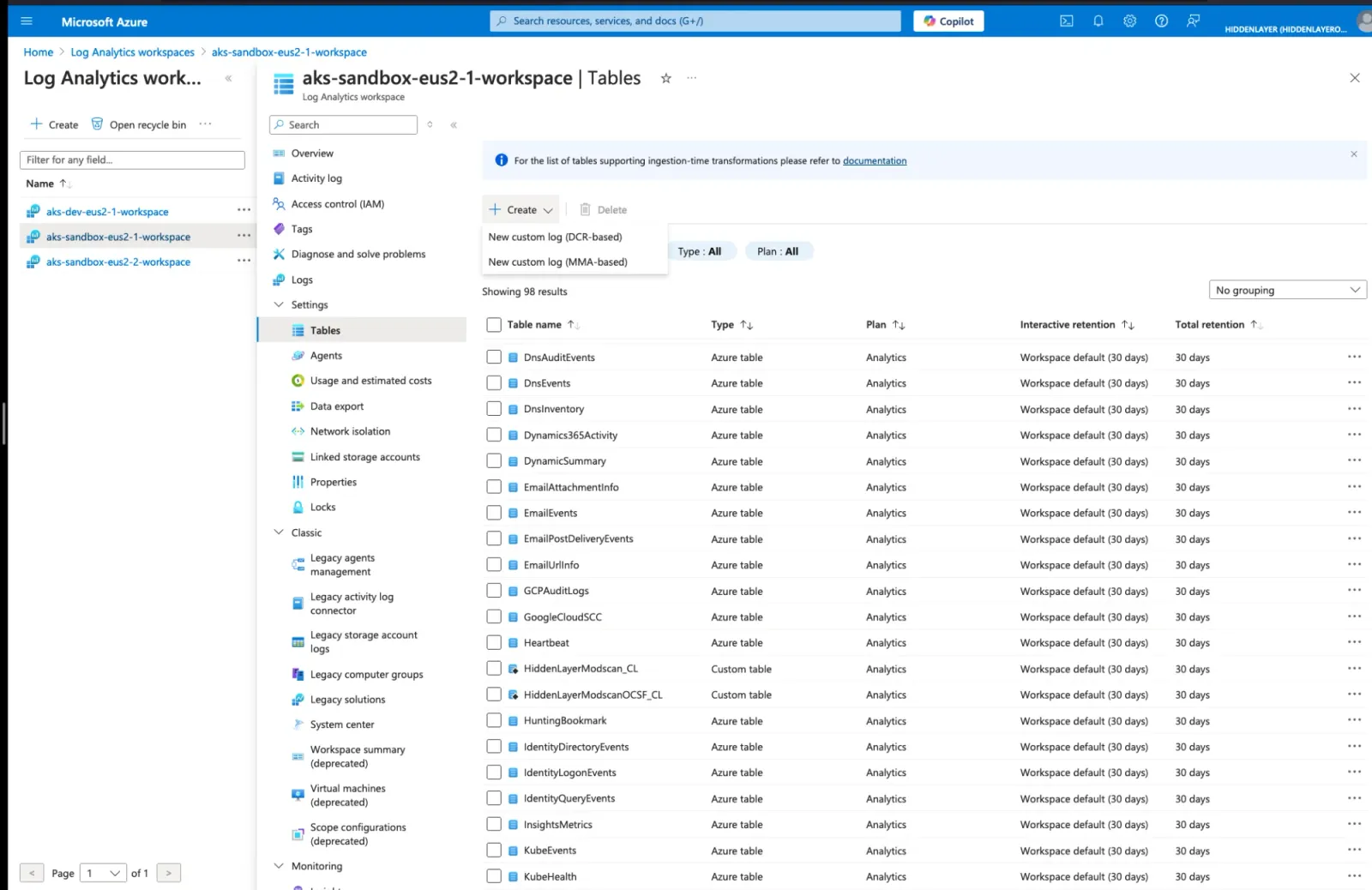
Click Create → New custom log (DCR-based)
-
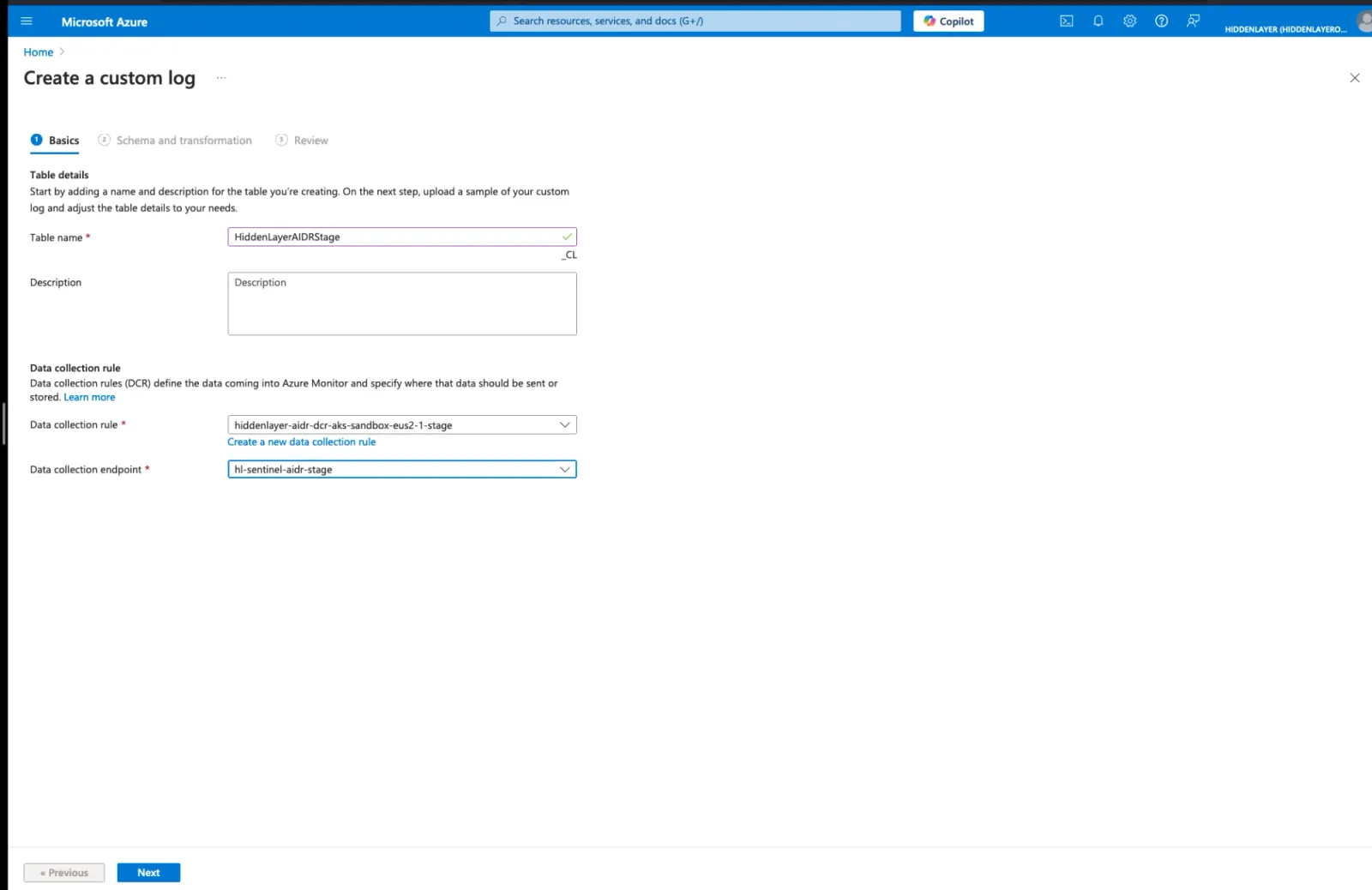
Configure the custom log:
- Table name:
HiddenLayerAIDRStage(without_CLsuffix) - Data collection endpoint: Select the endpoint created in Step 3
- Data collection rule: Create new or select existing
- Table name:
-
Click Next
-
Upload the following JSON schema file:
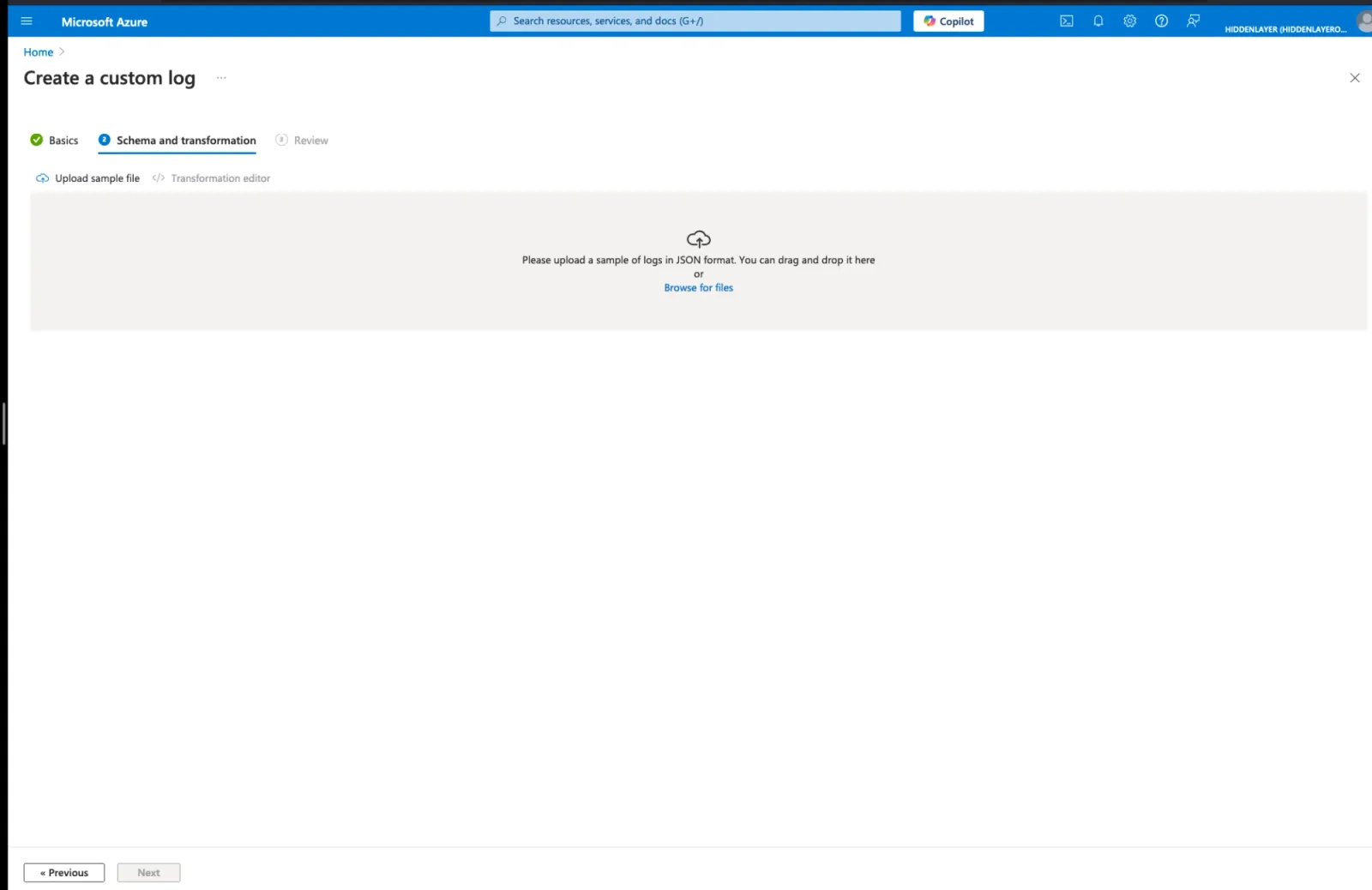
- Click Next → Create
Azure will create a table named HiddenLayerAIDRStage_CL and a stream named Custom-HiddenLayerAIDRStage_CL
Step 5: Get Data Collection Rule Details
-
Navigate to Azure Portal → Monitor → Data Collection Rules
-
Find and select the data collection rule created in Step 4
-
Click JSON View
-
Copy the
immutableId- It looks like: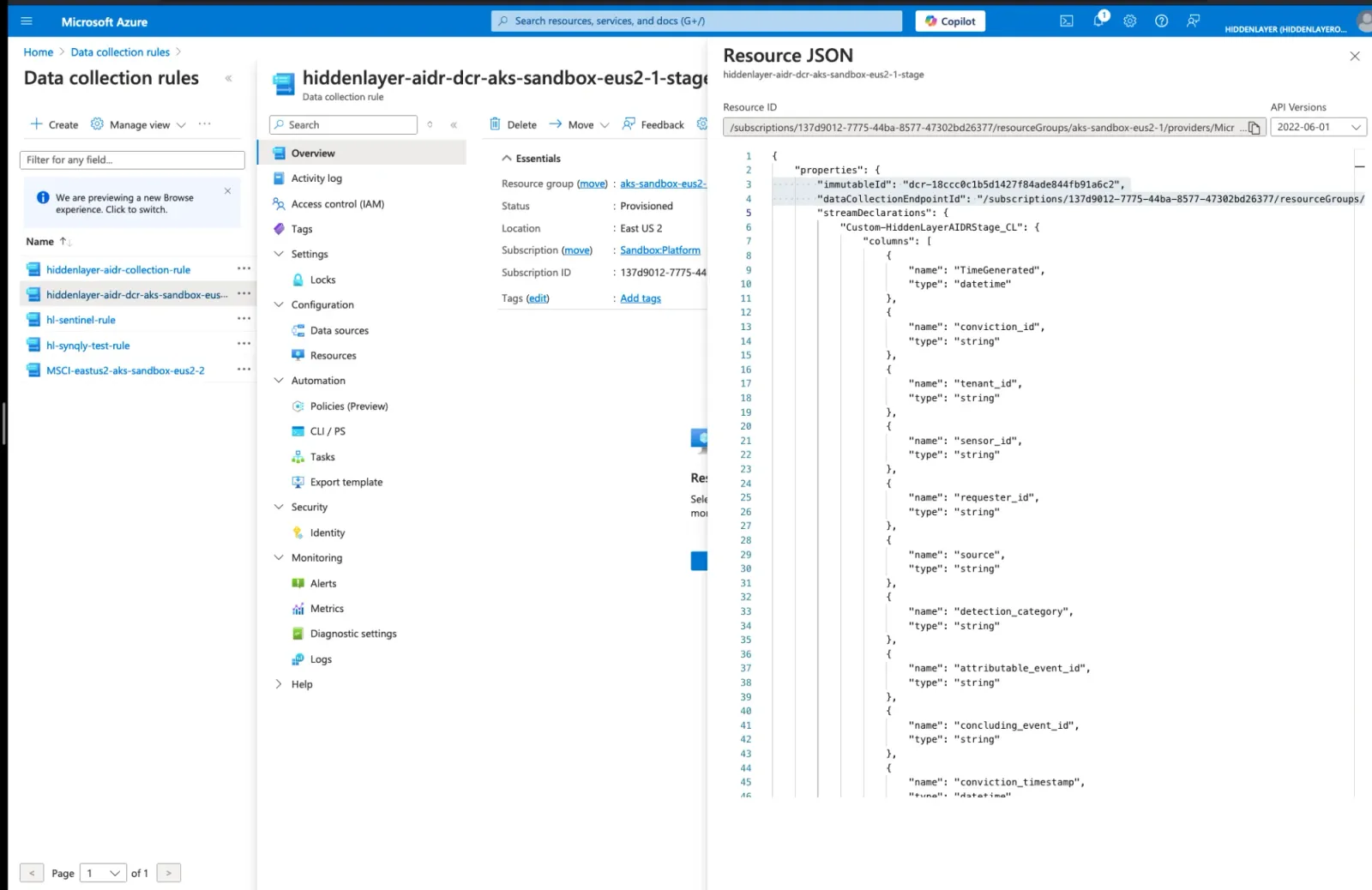
Step 6: Grant Permissions to App Registration
-
Stay on the Data Collection Rule page
-
Navigate to Access Control (IAM)
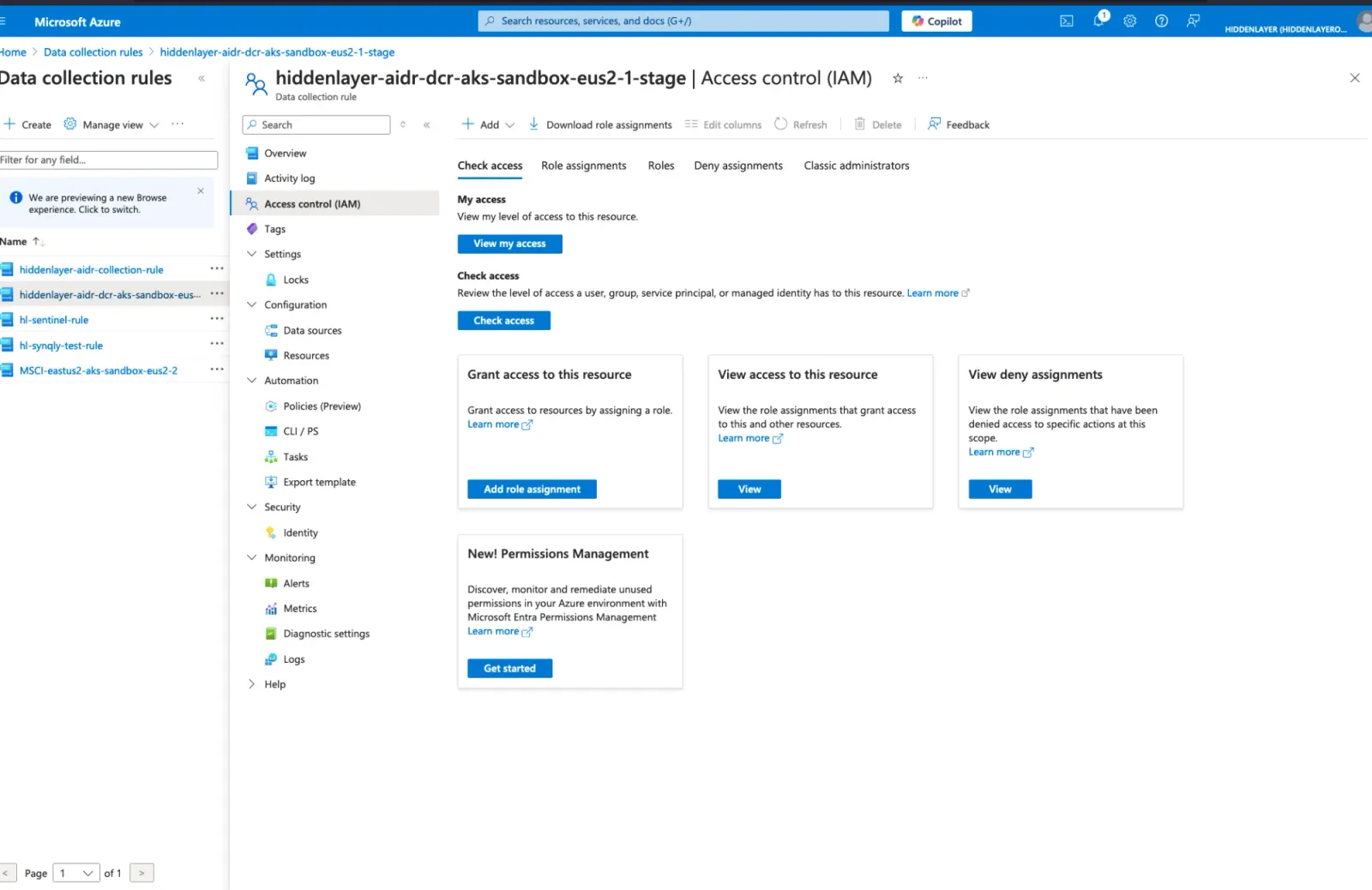
-
Click Add → Add role assignment
-
Select role: Monitoring Metrics Publisher
-
Click Next
-
For Assign access to, select User, group, or service principal
-
Click Select members
-
Search for your app registration name (from Step 1)
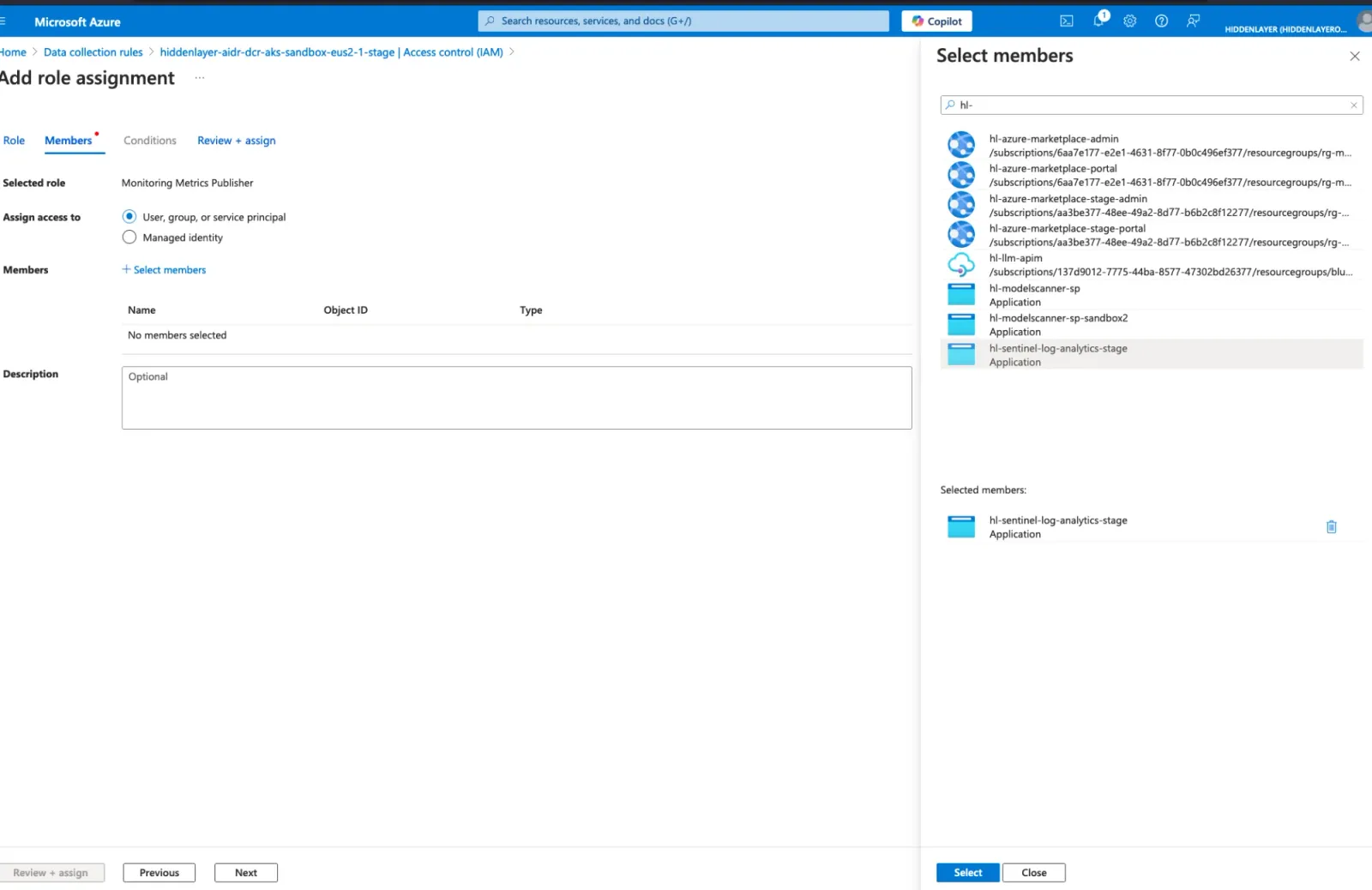
-
Select the application
-
Click Select → Review + assign → Review + assign
Step 7: Configure HiddenLayer Console
-
Log in to HiddenLayer Console
-
Navigate to Admin → Integrations
-
Find Azure Sentinel and click Configure Integration (three dots menu)
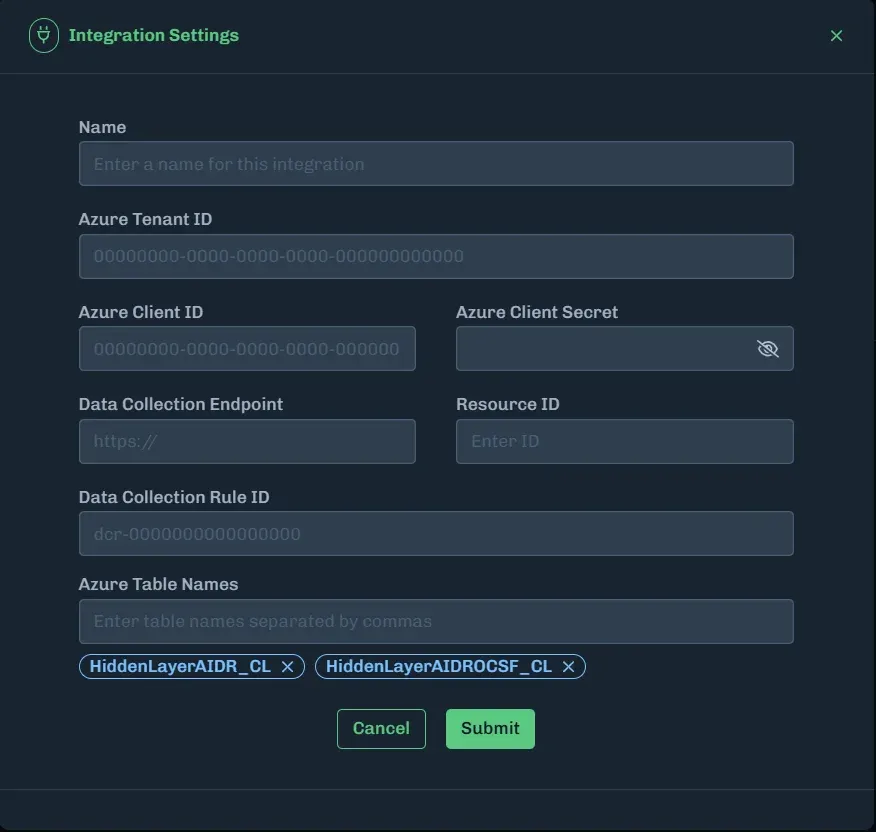
-
Enter the following values:
-
Click Submit
Configuration Summary
Key Configuration Mapping
What you create in Azure Portal:
- Table name:
HiddenLayerAIDRStage(no suffix)
What Azure automatically creates:
- Log Analytics table:
HiddenLayerAIDRStage_CL(adds_CLsuffix) - DCR stream:
Custom-HiddenLayerAIDRStage_CL(addsCustom-prefix and_CLsuffix)
What you configure in HiddenLayer:
- Table name:
Custom-HiddenLayerAIDRStage_CL(the full stream name)
Critical Field Clarifications
Verification (Wait 5-10 minutes after configuration)
Step 1: Create an AI Runtime Security detection
- In HiddenLayer Console, navigate to LLM Sandbox
- Select OWASP Scenarios -> LLM01: Prompt Injection
- Turn on Block Prompt Injection in the Policy Settings
- Send the prompt
- You should see a message saying the prompt was blocked
Step 2: Check Azure for Errors
Run this query in Log Analytics:
Expected result: No errors
If errors exist: See Troubleshooting section below
Step 3: Verify Data Ingestion
Run this query in Log Analytics:
Expected result: Conviction data appears in the table
Testing the Integration
If you want to manually test the Azure configuration before HiddenLayer sends data, use this Python script:
Test Script
Save as test_integration.py:
Install dependencies:
Run test:
Troubleshooting
Issue 1: Stream Not Configured Error
Error in DCRLogErrors:
Cause: Incorrect table name in HiddenLayer Console
Solution:
✅ Correct configuration:
- Azure Portal table name:
HiddenLayerAIDRStage - HiddenLayer Console table name:
Custom-HiddenLayerAIDRStage_CL
❌ Incorrect configurations:
HiddenLayerAIDRStage_CL(missing “Custom-” prefix)HiddenLayerAIDRStage(missing both prefix and suffix)HiddenLayerAIDRStage_CL_CL(double suffix - table created incorrectly)
Issue 2: Authentication Failures
Error: No data in table
Possible causes:
- Incorrect Client ID or Client Secret
- Expired Client Secret
- Missing role assignment
Solutions:
Verify credentials:
Check role assignment:
- Go to Data Collection Rule → Access Control (IAM)
- Verify app has “Monitoring Metrics Publisher” role
- If missing, add the role (see Step 6)
Regenerate secret:
- Go to App Registration → Certificates & secrets
- Create new client secret
- Update HiddenLayer configuration immediately
Issue 3: No Data Appearing
Symptom: No errors in DCRLogErrors, but no data in table
Possible causes:
- No convictions being generated
- Integration not properly activated
- Timing delay
Solutions:
Check for detections:
- HiddenLayer Console → AI Runtime Security → Detections
- Look for detections in the last 24 hours
Trigger test detection:
- Follow the steps in Testing the Integration
Diagnostic Queries
Check for Integration Errors
Check Data Ingestion Rate
Check Conviction Severity Distribution
Find Recent High Severity Convictions
Additional Resources
Microsoft Documentation
Quick Reference Card
Use this for easy reference: