

Users
Create User
Administrators can create, modify, and delete user accounts.
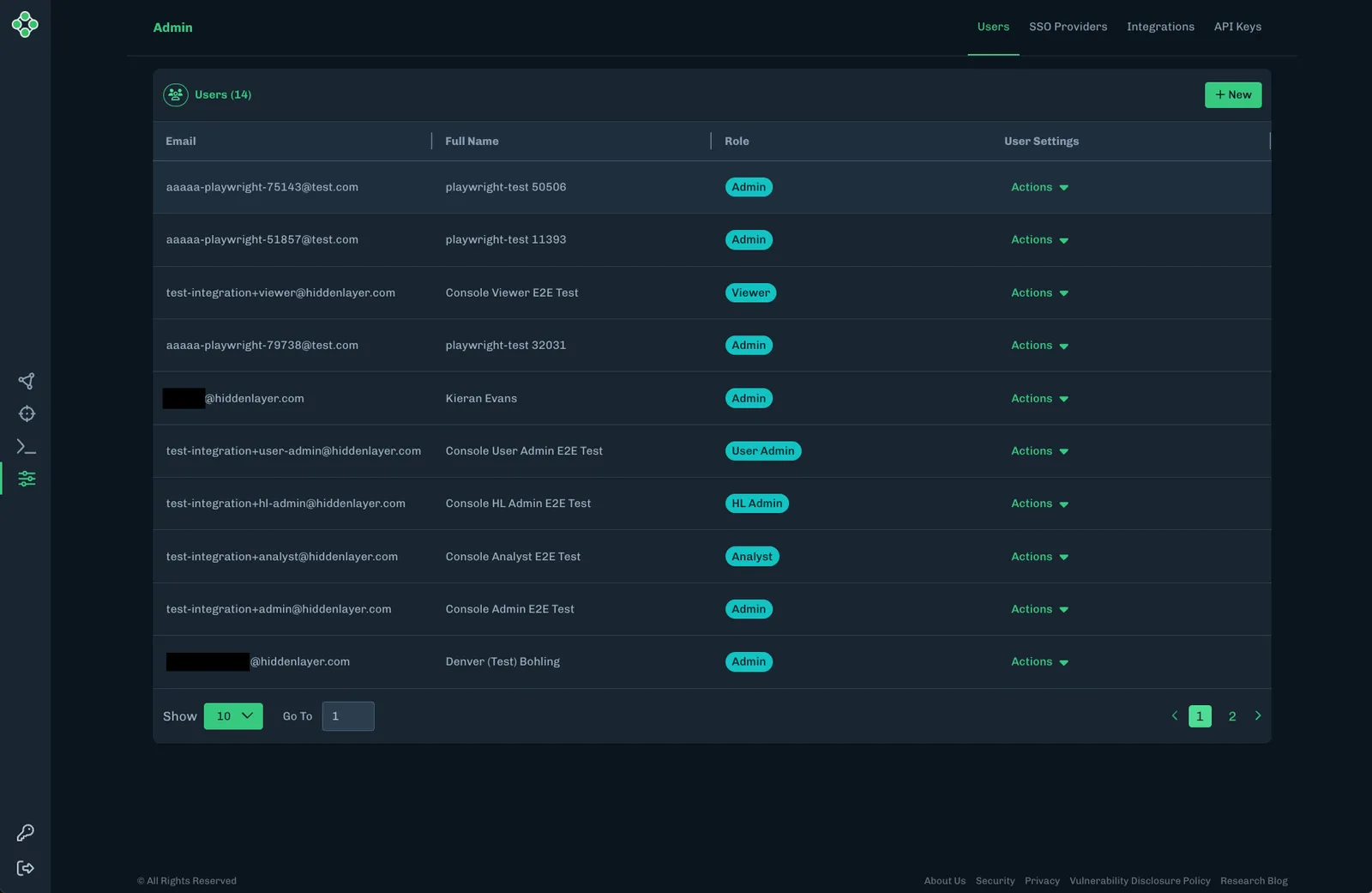
- In the HiddenLayer Console, go to Settings > Users.
- Click + New.
It is recommended that your first new user should be another Admin, as is best practice.
-
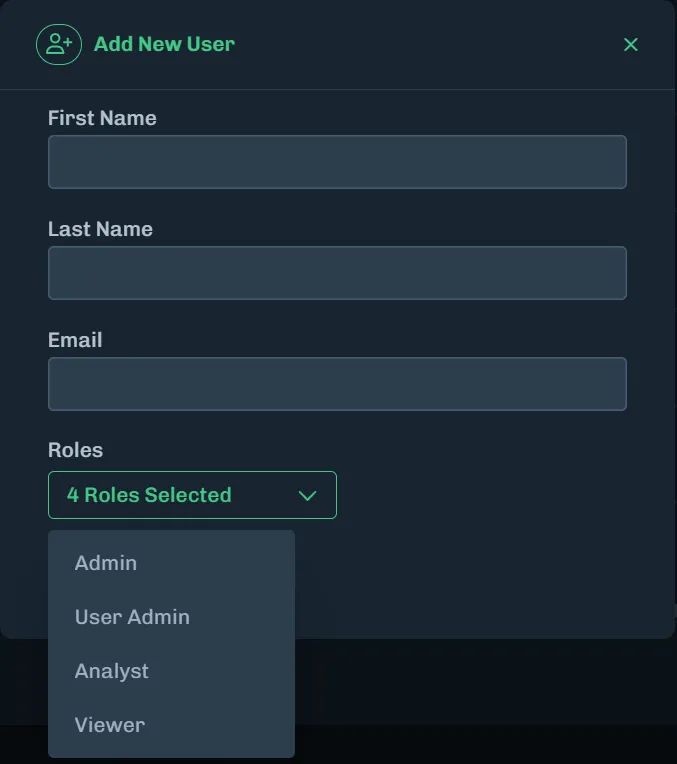
Enter the new user’s first name, last name, and email.
-
Select a Role, then click Save. For information about roles, see Defined Roles.
-
After creating a new user, HiddenLayer will generate and send a new password to the newly created user.
Defined Roles
The Console provides defined roles that you can assign your users to. To assign a role to a user, see Create User or Edit User.
The following table shows permissions for each role.
- Admin: Can view all pages, has access to the admin section, and can manage users (add, edit, change role, and delete users).
- User Admin: Can manage users (add, edit, change role, and delete users).
- Analyst: Can view all data and interact with the model inventory, models, detections, and LLM Sandbox. Does not have access to the administrator functions.
- Viewer: Read-only access to the Console and does not have access to the administrator functions.
Reset Password
Administrators can reset user passwords. Make sure you save the new password because you cannot view it later.
-
In the HiddenLayer Console, go to Settings > Users.
-
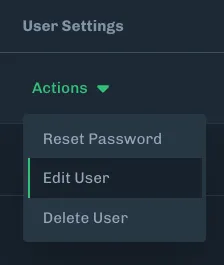
Click Actions > Reset Password.
-
A reset password email is sent to the user. The user must follow the steps to reset their password.
Edit User
Administrators can edit users to change their first name, last name, or email address.
-
In the Console, go to Settings > Users.
-
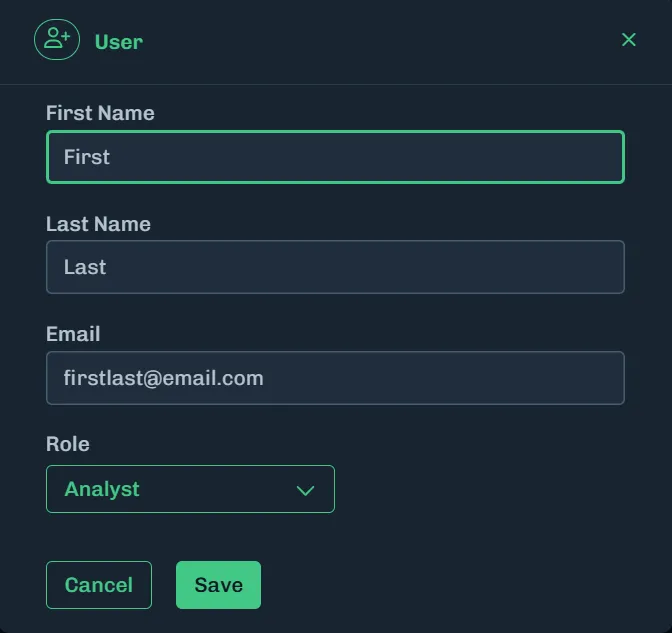
Click Actions > Edit User.
-
Edit the user’s information.
-
Click Save.
Delete User
Administrators can delete users from the Console.
-
In the HiddenLayer Console, go to Settings > Users.
-
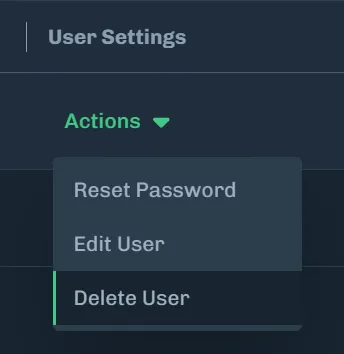
Click Actions > Delete User.
-
A message displays asking you to confirm deleting the user.

-
Click Delete.